Best Password Manager for Windows 11
Get more control over every account on Windows 11 with PureVPN’s Password Manager. Create stronger passwords, sign in without the hassle, and keep personal data secured in a single encrypted vault that works across all your devices.


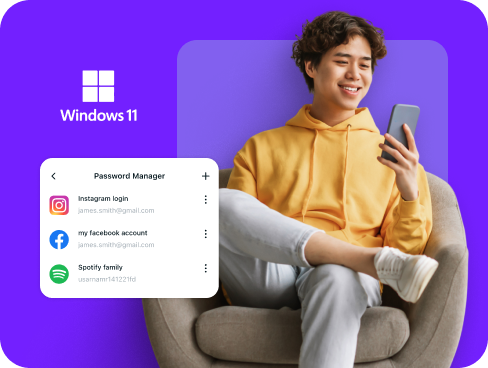
What is Windows 11 Password Manager?
A Windows 11 password manager keeps your credentials safe, creates unique passwords, and makes logging in effortless across apps and browsers. Microsoft offers tools like Authenticator and Edge’s built-in saver, but many users turn to third-party managers for extras such as cross-platform syncing, encrypted notes, and stronger security controls.
Why Do You Need a Password Manager on Windows 11?
Windows 11 includes useful security tools, but password habits often remain the weakest link. A password manager solves that by helping you:
Manage All Your Credentials in One Place
With dozens of online accounts, remembering every password becomes impossible. A password manager keeps them all organized, secure, and instantly accessible.
Create Strong, Unique Passwords
Weak or reused passwords leave you vulnerable to attacks. A password manager generates complex, random passwords for each account, protecting you from brute-force attempts.
Log in Easily and Quickly
Manually typing passwords wastes time and increases error risk. With autofill and Biometric Lock, you can access your accounts instantly and focus on the task at hand.
Sync Passwords Across Devices
Your passwords stay synced and available across all devices. Whether you switch between your Windows 11 PC, phone, or tablet, your credentials remain backed up and ready.
Store More Than Just Passwords
Beyond passwords, you can store your credit cards, private notes, and Wi-Fi passwords in one encrypted vault, always accessible on your Windows 11 PC and other devices.
What Makes PureVPN the Best Password Manager for Windows 11?
PureVPN’s Password Manager delivers enterprise-grade security without unnecessary complexity. Here’s what sets it apart from alternatives:
Auto-Fill Across Apps and Browsers
Fill login forms instantly in Chrome, Edge, Firefox, and supported Windows apps using our integrated autofill. No more manual entry or copy-pasting passwords.
Cross-Device Syncing
Whether you work on Windows 11, Android, iOS, or other platforms, your data stays encrypted and synced in real-time, accessible whenever you need it.
Biometric Lock + Master Password Protection
Access your vault with Biometric Lock for instant access, or use your master password as backup. You maintain control with dual security layers.
Encrypted Notes for Sensitive Data
Protect more than passwords. Store credit card information, Wi-Fi credentials, software licenses, and confidential notes, all encrypted and organized systematically.
Built-In Password Generator
Generate unbreakable passwords with one click. Whether creating new accounts or updating existing ones, PureVPN helps you eliminate weak and duplicate passwords.
Monitor Your Vault’s Health
Receive alerts for weak, reused, or outdated passwords. The integrated password health scanner identifies and helps you fix security vulnerabilities proactively.
The Real Power Is in the Integration
Most password managers stop at storage. PureVPN goes further by protecting the way you access them.
Logins That Leave No Trace
Hackers rely on digital footprints like IP addresses and metadata. PureVPN erases those trails, and with an audited no-logs policy, there’s nothing left to follow.
Invisible by Design
Running your vault through a VPN means every action, whether autofill or syncing, moves inside an encrypted tunnel. No leaks, no exposure, no surface to attack.
One App, One Encrypted Ecosystem
Stop switching between tools and exposing yourself in the gaps. PureVPN merges your vault, VPN, and tracker blocker into one secure environment.
Protection That Activates Instantly
The moment you launch the app, protection switches on by encrypting traffic, masking your identity, and locking credentials behind layered defenses.
How to Set Up PureVPN’s Password Manager on Windows 11
Just follow these steps to get started:
Step 1

Download the PureVPN Windows app and log into your account
Step 2

Click Password Manager and create a master password.
Step 3

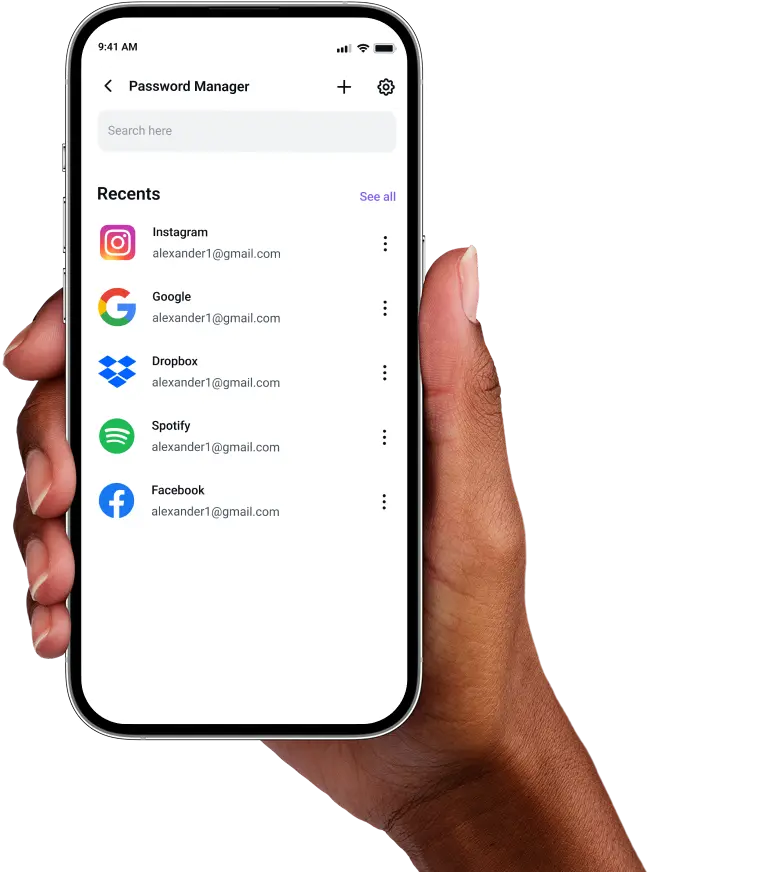
Add your credentials manually or import them and generate strong, unique passwords.
Frequently Asked Questions
Find answers to common questions about PureVPN Password Manager here.
Does Windows 11 have a free password manager?


Yes, Windows 11 includes password management through Microsoft Edge and Microsoft Authenticator, which securely store and autofill credentials across Microsoft services. They are free but primarily limited to the Microsoft ecosystem.
Why should I use a third-party password manager on my Windows 11 PC?
Third-party password managers provide greater flexibility, advanced security features, and broader device compatibility. You can generate stronger passwords, sync across non-Microsoft devices, store encrypted notes, and access breach monitoring tools, all within one application.
Are Windows 11 password managers safe?
Yes, when using a reputable provider like PureVPN, Windows 11 password managers offer excellent security. They employ AES 256-bit encryption, support biometric authentication, and are based on zero-knowledge architecture, so you can access your data.
What is the best Windows 11 password manager?
The best password manager for Windows 11 combines robust security, user-friendly design, and multi-platform support. PureVPN’s integrated manager delivers with military-grade encryption, browser and app autofill, and seamless VPN protection.