Best Password Manager for macOS
PureVPN’s Password Manager locks every password inside an encrypted vault, works with Safari and other web browsers, and lets you sign in instantly with Touch ID on your MacBook Pro or iMac.


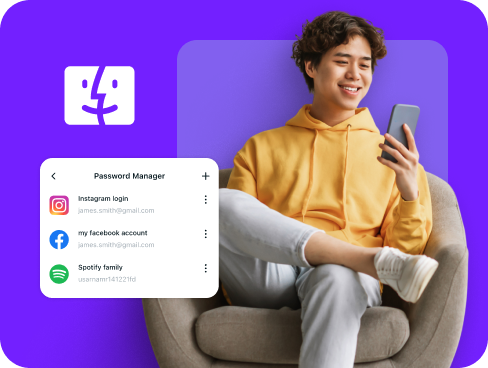
What is macOS Password Manager?
A macOS password manager gives you one secure place to keep all your credentials. Unlike the Passwords app, which is limited to Apple’s ecosystem, a dedicated manager lets you generate stronger credentials, store sensitive details like notes or payment information, and keep everything available across Apple and non-Apple devices alike.
Why Do You Need a Password Manager on macOS?
macOS keeps your device secure, but that doesn’t stop attackers from targeting weak or reused passwords. A password manager strengthens your online security by helping you:
Manage All Your Credentials in One Place
Don’t juggle dozens of passwords across browsers and apps. Store them in one encrypted vault, where everything stays organized and accessible whenever you need to sign in on your Macbook or iMac.
Create Strong, Unique Passwords
Cybercriminals count on weak and repeated passwords to break in. Instantly generate long, complex passwords for each site and app, making your accounts far more difficult to compromise.
Log in Easily and Quickly
Manually typing your passwords over and over is a slow and error-prone process. With automatic form detection and autofill capabilities, signing into accounts becomes fast and seamless.
Sync Passwords Across Devices
Whether you move between a MacBook and an iMac or sign in on another platform, your vault stays updated everywhere. Every change is encrypted and synced automatically across devices.
Store More Than Just Passwords
Logins aren’t the only thing you can secure in the vault. Lock away your credit card details, Wi-Fi passwords, private notes, and sensitive documents rather than storing them in sticky notes.
What Makes PureVPN the Best Password Manager for macOS?
PureVPN’s Password Manager is built for Mac users who want seamless performance with strong security. Here’s why it stands out:
Auto-Fill Across Apps and Browsers
Autofill works across Safari and compatible macOS apps, dropping your details directly into login fields while keeping everything encrypted in the background.
Cross-Device Syncing
Whether you’re moving between a MacBook, iMac, iPhone, or even non-Apple platforms, every update syncs securely so your passwords follow you everywhere.
Biometric Lock + Master Password Protection
Use Touch ID on supported iMacs and MacBooks to unlock your vault instantly, or rely on your master password as a secure fallback.
Encrypted Notes for Sensitive Data
Add Wi-Fi details, bank cards, license keys, or private notes, all kept inside the same encrypted vault that only you can unlock.
Built-In Password Generator
Stop recycling weak logins. Create long, randomized passwords for every account and replace unsafe credentials with stronger alternatives in seconds.
Monitor Your Vault’s Health
Get notified of any passwords that are weak, repeated, or no longer secure to update them immediately and protect your accounts from unauthorized access.
The Real Power Is in the Integration
Most password managers stop at saving credentials. PureVPN goes further by protecting how you access them, too:
Logins That Leave No Trace
Every sign-in runs through an encrypted tunnel, concealing your IP address and location. With no logs kept, there’s no trail for anyone to connect back to your vault activity.
Invisible by Design
Your vault traffic moves entirely through secure VPN servers. Autofill, syncing, and updates stay hidden from prying eyes, leaving attackers with no opening to observe or interfere.
One App, One Encrypted Ecosystem
Get password management, VPN protection, and tracking blocking in a single place. No more switching between security apps, meaning less security exposure.
Protection That Activates Instantly
Passwords stay protected in your secure vault at all times, while the VPN shields every login and sync request through an encrypted tunnel.
How to Set Up PureVPN’s Password Manager on macOS
Just follow these simple steps to get started:
Step 1

Download the PureVPN macOS app and log into your account.
Step 2

Go to the Password Manager tab, create a master password or enable Touch ID for quick access.
Step 3

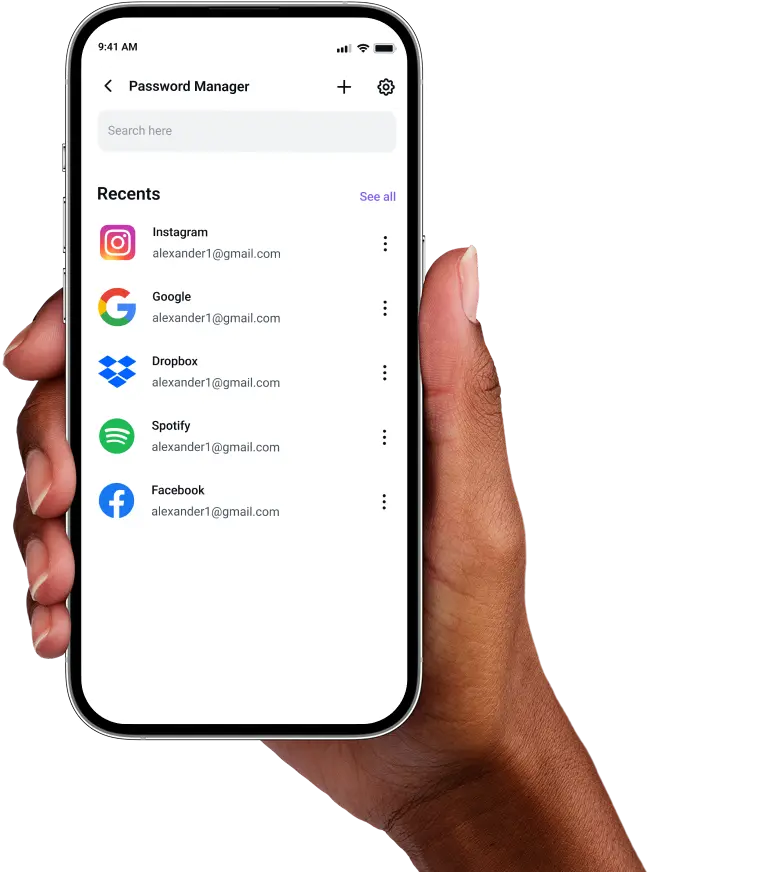
Add your credentials manually or import them, and generate strong, unique passwords.
Frequently Asked Questions
Find answers to common questions about PureVPN Password Manager here.
Does macOS have a free password manager?


Yes. macOS includes the Passwords apps, which saves and autofills passwords across iMacs and MacBooks. It’s free and straightforward for Apple-only setups, but it doesn’t offer the cross-platform features of third-party managers.
Why should I use a third-party password manager on macOS?
Third-party managers provide stronger password generation, cross-platform sync, secure note storage, and health check capabilities. If you use non-Apple devices or need advanced sharing and security tools, they offer more control and visibility.
Are macOS password managers safe?
Yes, most reputable providers like PureVPN offer vaults that use strong encryption, support biometric unlock like Touch ID, and use zero-knowledge designs so only you can decrypt the data stored.
What is the best macOS password manager?
The best option balances strong encryption, ease-of-use, and cross-device support. PureVPN’s manager delivers secure storage, Touch ID unlock, autofill, password generation, and seamless syncing outside the Apple ecosystem.