
Best Password Manager for Chromebook
Protect every login on your Chromebook with PureVPN’s secure and easy-to-use Password Manager. Autofill credentials instantly, sync across all your devices, and secure everything from notes to documents in one protected vault.


What is Chromebook Password Manager?
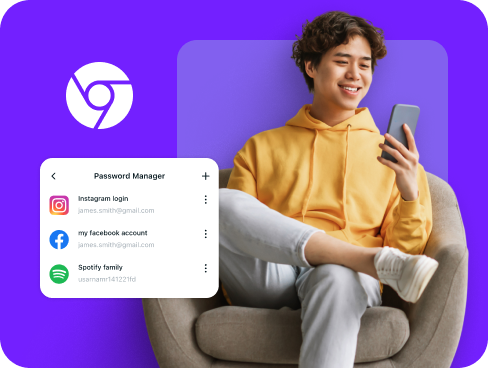
A Chromebook password manager stores your passwords, generates strong credentials, and autofills them across websites and apps. While Chrome OS includes Google Password Manager by default, many users choose third-party managers for better security features and sync options beyond Google’s ecosystem.
Why Do You Need a Password Manager on Chromebook?
Your Chromebook lives in the cloud, which means your online accounts are your gateway to everything. A password manager keeps those gateways secure by helping you:
Manage All Your Credentials in One Place
Between Google Workspace, web apps, and Android apps on your Chromebook, you need dozens of passwords. Organize them all in one secure location you can access anytime.
Create Strong, Unique Passwords
Using the same password everywhere puts all your accounts at risk. Create complex, random passwords for each account to stay safe from credential stuffing attacks.
Log in Easily and Quickly
Stop wasting time typing passwords manually. With automatic form detection and autofill capabilities, you can sign into your online accounts instantly with just one click.
Sync Passwords Across Devices
Your passwords follow you everywhere. Whether you switch between Chromebook, phone, or tablet, everything stays synced and ready when you need it.
Store More Than Just Passwords
Keep your payment cards, secure notes, and network passwords safe in one encrypted vault. Access them from your Chromebook or any other device with ease.
What Makes PureVPN the Best Password Manager for Chromebook?
PureVPN’s Password Manager works perfectly with Chrome OS, delivering security without slowing you down. Here’s what sets it apart:
Auto-Fill Across Apps and Browsers
Fill login fields instantly in supported browsers and apps on your Chromebook. No more switching tabs to copy passwords or typing them out manually.
Cross-Device Syncing
Move between your Chromebook, Android phone, or any other device seamlessly. Your passwords stay encrypted and synced across every platform you use.
Biometric Lock + Master Password Protection
Access your vault by entering your master password or using the web app’s Biometric Lock. Both options give you flexibility without compromising safety.
Encrypted Notes for Sensitive Data
Store more than passwords. Keep credit card numbers, secure notes, Wi-Fi credentials, and other private information encrypted and organized in your vault.
Built-In Password Generator
Generate strong, hard-to-guess passwords without effort. When creating new accounts or updating old ones, you can set unbreakable passwords in no time.
Monitor Your Vault’s Health
See which passwords need updating at a glance. The password health checker flags weak, duplicate, or outdated credentials so you can change them fast.
The Real Power Is n the Integration
Most password managers stop at storage. PureVPN safeguards both your vault and how you access it.
Logins That Leave No Trace
Accessing accounts without protection leaves behind data trails. PureVPN conceals your IP and enforces a tried-and-tested no-logs policy so nothing links back to you.
Invisible by Design
Your vault operates behind VPN protection. Every autofill request and sync update travels through an encrypted connection that keeps your data hidden from view.
One App, One Encrypted Ecosystem
Manage your passwords, VPN connection, and tracker blocker from one app on your Chromebook. No juggling between different apps or leaving gaps in your security.
Protection That Activates Instantly
Connect and you’re protected immediately. Your traffic gets encrypted, your location stays private, and your passwords remain locked behind multiple security layers.
How to Set Up PureVPN’s Password Manager on Chromebook
Follow these simple steps to get started:
Step 1

Download PureVPN’s Android app from the Play Store on your Chromebook and sign in.
Step 2

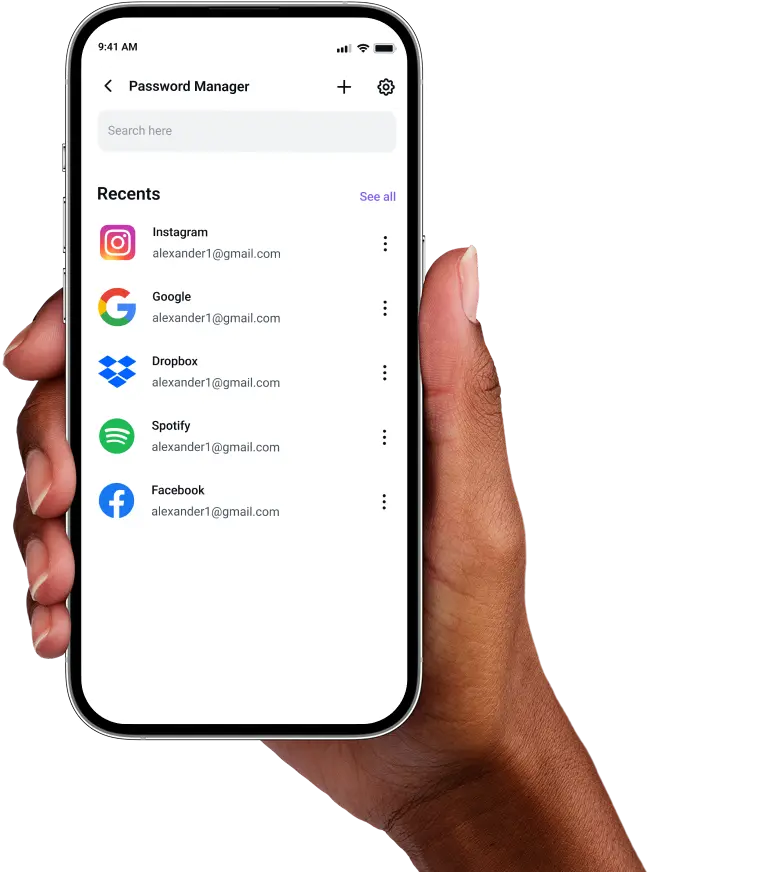
Go to the Password Manager tab and set up your master password.
Step 3

Import existing passwords or add them manually, then start generating secure credentials.
Frequently Asked Questions
Find answers to common questions about PureVPN Password Manager here.
Does Chromebook have a free password manager?


Google offers a free password manager built into Chrome browser on Chromebooks. It saves and autofills passwords across Google services, but lacks advanced features like encrypted notes and cross-platform support outside Google’s ecosystem.
Why should I use a third-party password manager on my Chromebook?
Third-party password managers on Chromebook give you more flexibility and security options. You get stronger password generation, sync with non-Google devices, encrypted storage for sensitive notes, and more all in one secure app.
Are Chromebook password managers safe?
Yes, password managers on Chromebook are safe when you choose a reputable provider like PureVPN. They use military-grade AES 256-bit encryption, secure authentication methods, and zero-knowledge architecture to ensure only you can access your data.
What is the best Chromebook password manager?
The best password manager for Chromebook combines strong security with Chrome OS compatibility. PureVPN’s integrated manager delivers both, with unbreakable encryption, autofill support, cross-platform sync, and built-in VPN protection.